Method: Integrations & Policies
Estimated Time to Complete: 5 minute
Installer: Amplifier Administrator
Setup
Installation will be accomplished by generating an API Token from a “Read-only Admin” account. An administrator will need to ensure to create a Read-only admin account, assign Read-only permissions to an existing service account, or have access to the Read-only admin account. This requires 2-3 steps.
1. From the AMPLIFIER SECURITY HUB navigate to Integrations & Policies from the left navigation tabs.
2. Under CUSTOM FINDINGS click CONFIGURE then ADD FINDING.
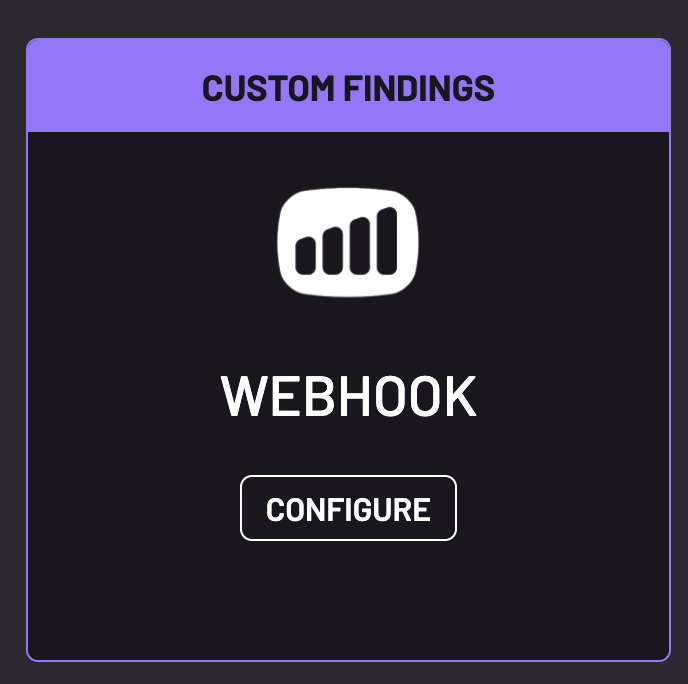
3. A configuration window will pop up to define your Custom Finding.
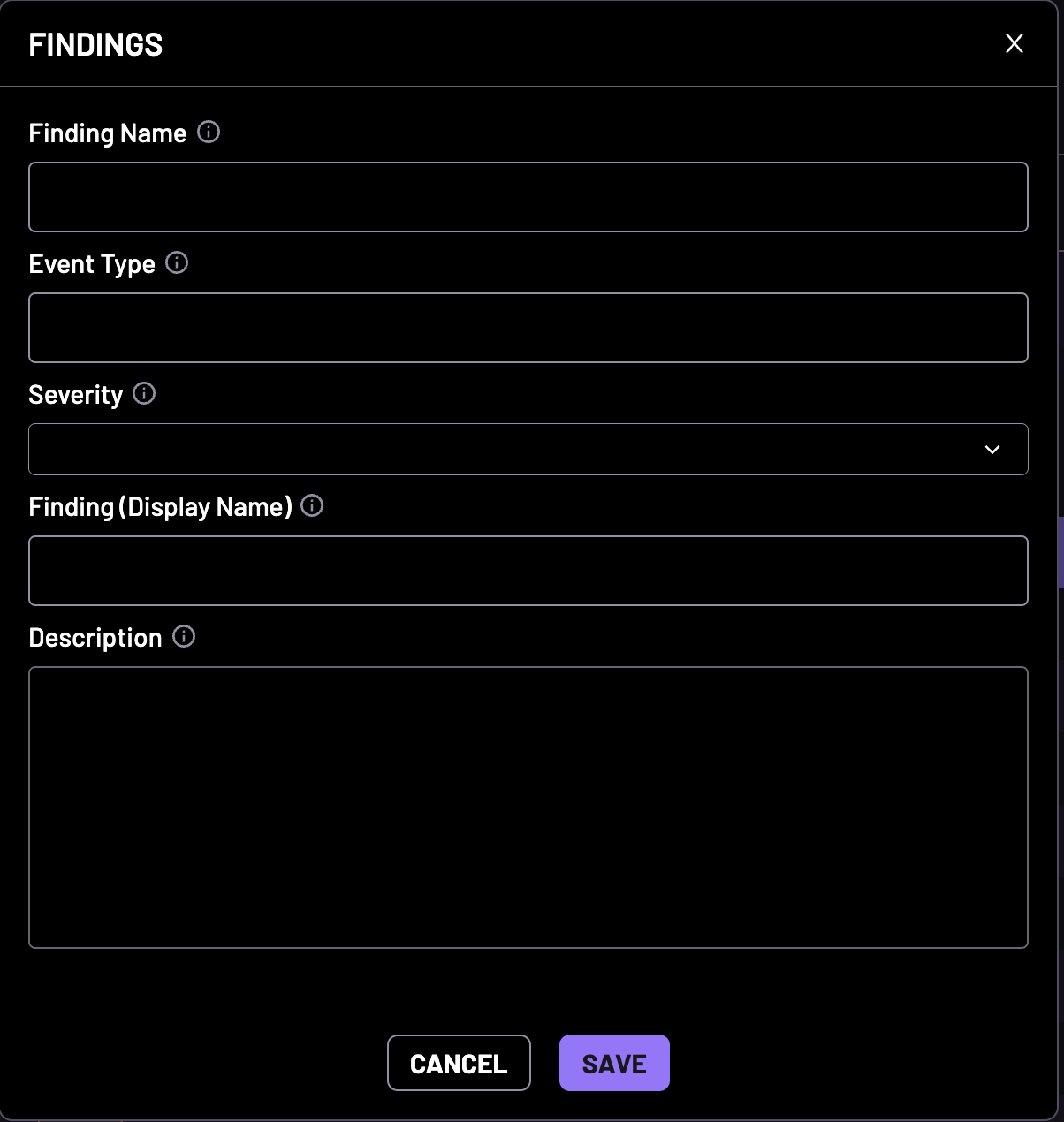
4. Fill in the fields and SAVE.
| Finding Name | This is the name that will be displayed within our App (ex: Weak Password) |
| Event Type | Key that will be used in your API call to map the finding call to this specification. (ex: password.weak) |
| Severity | Identifies the Severity of this finding (Critical, High, Medium, Low) |
| Finding (Display Name) | The employee friendly name (ex: User Weak Password) |
| Description | Text describing the finding. This text will be used by AI messaging to give context to this finding type. (ex: User's password was cracked by the security team. This will be used to notify the user that their password did not meet the minimum requirements.) |
5. The new specification will be saved under Findings Configuration.

CALLING CUSTOM FINDINGS
Now that you setup a Custom Finding, you can call our webhook to create your finding for a User or Device.
1. From the AMPLIFIER SECURITY HUB navigate to Integrations & Policies from the left navigation tabs.
2. Under CUSTOM FINDINGS click CONFIGURE.
3. You should be able to expand the Webhook Credential section to get the endpoint URL.
4. When calling the webhook you will minimally requiredto provide the Event Type and the Email of the user you would like to assign the finding. You can expand the Instructions section in the application to get detailed instructions on how to call the webhook.
5. Detailed instructions for making wehook calls are here.
Was this article helpful?
That’s Great!
Thank you for your feedback
Sorry! We couldn't be helpful
Thank you for your feedback
Feedback sent
We appreciate your effort and will try to fix the article